
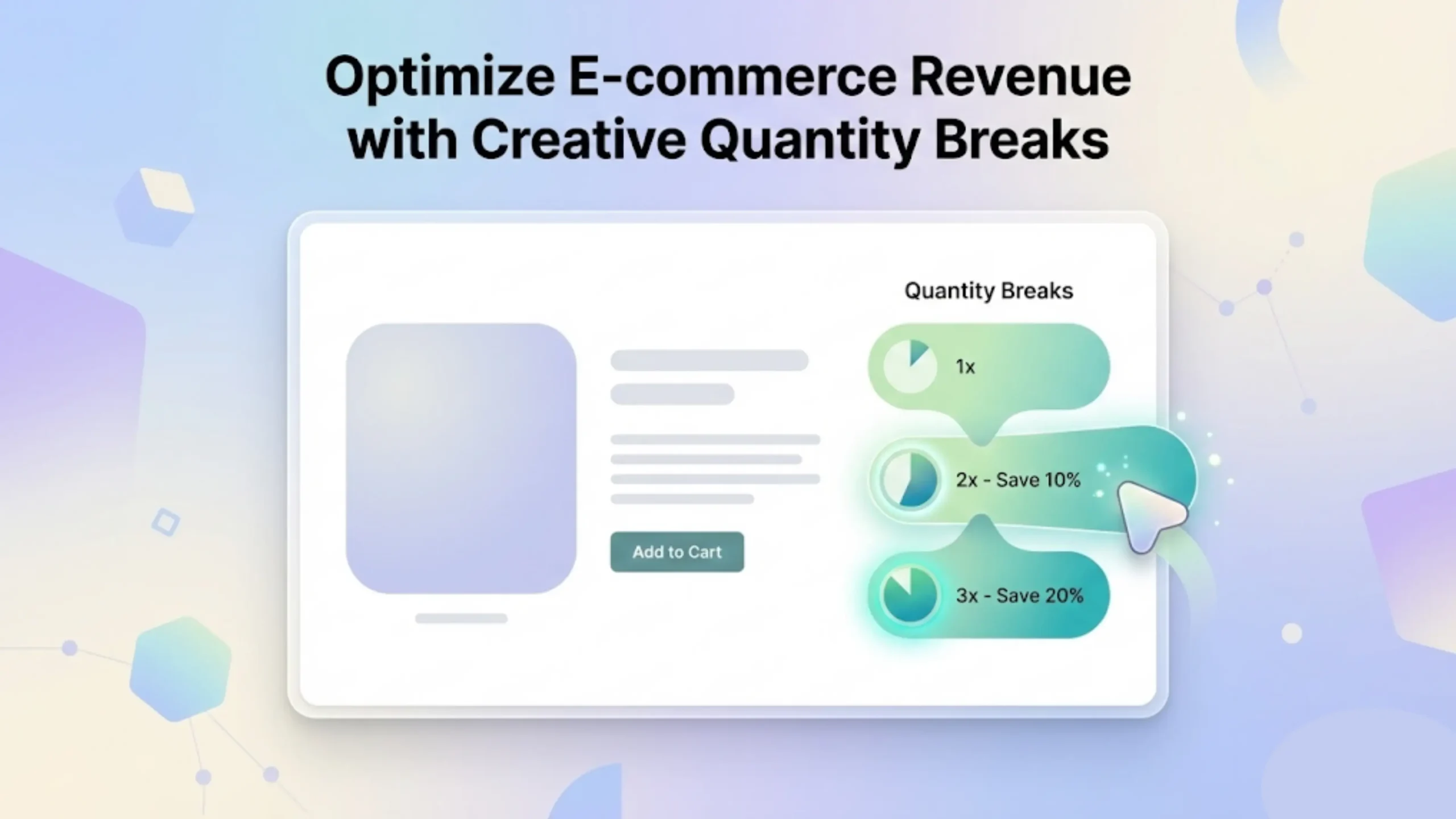
Quantity breaks are “buy more, save more” tiers. The discount (or price) changes when a customer adds more units. This guide keeps it simple and beginner-safe.
Note: discount rules and app plans can change over time. Always test your offer before you promote it.
Want examples and beginner-friendly tools? Start here: quantity breaks on Shopify setup ideas.
What are quantity breaks (simple definition)
Quantity breaks mean the deal changes when the quantity changes. The customer gets a better discount when they buy more units.
Simple example: Buy 2 save 10%, Buy 3 save 15%.
Quantity breaks are not the same as “bundles.” Bundles usually combine different products (like a kit). Quantity breaks usually apply to the same product.
Why quantity breaks can increase order size (no hype)
A clear tier gives shoppers a reason to add one more item. They can see the savings without doing math.
- Works best for repeat items and refill items.
- Also works for small accessories people buy in multiples.
- Only use it if your margins can handle the discount.
When quantity breaks are a good idea (and when to skip)
Good use cases
- Consumables (refills, supplies, items used regularly).
- Small items with simple shipping.
- Variants customers often buy more than one of.
Risky use cases
- High-ticket products where margins are tight.
- Heavy products where shipping cost grows fast with quantity.
- Low-margin products (a discount can turn profit into loss).
New-store rule: start with one product only. Make it work, then expand.
Pick your tiers in 60 seconds (decision rules)
If your product is under $25
Use 2–3 tiers with small steps. Keep it easy to read.
Example: Buy 2 save 8% • Buy 4 save 12% • Buy 6 save 15%
If your product is $25–$80
Use 2 tiers only. Make the reason to add one more unit clear.
Example: Buy 2 save 10% • Buy 3 save 15%
If your product is over $80
Use 1 tier max, or skip at first. Protect your margin.
Example: Buy 2 save 8–10% (only if margin allows)
Decision table
| Product price | Margin comfort | Recommended tiers | Example |
|---|---|---|---|
| Under $25 | Medium to high | 2–3 tiers | Buy 2 save 8% / Buy 4 save 12% / Buy 6 save 15% |
| $25–$80 | Medium | 2 tiers | Buy 2 save 10% / Buy 3 save 15% |
| Over $80 | High only | 1 tier (or skip) | Buy 2 save 8–10% |
Soft next step: Start with one product and two tiers.
How to implement quantity breaks on Shopify (2 paths)
There are two common ways to set up quantity breaks. Both can work. The best choice depends on how you want the offer to look on your product page.
| Path | Best for | What to watch for |
|---|---|---|
| Path A: Shopify built-in discounts | Quick tests and simple promos | Offer may not be displayed as a “buy more, save more” widget on the product page |
| Path B: Quantity breaks app | Clear product page presentation | Always test with your theme and other tools |
Shopify’s discount basics (help pages): Discounts overview and Discount types.
Step-by-step setup (beginner-friendly)
Option 1 — Using Shopify discounts (fast test)
- Pick one product. Choose the product that is easiest to buy in multiples.
- Create one discount. Decide if you want an automatic discount or a code. Automatic is simpler for most new stores.
- Keep the tiers simple. Start with 2 tiers (example: Buy 2 save 10%, Buy 3 save 15%).
- Test it end-to-end. Use the testing checklist below (cart, checkout, mobile).
Automatic discount basics are explained here: Automatic discounts.
Option 2 — Using a quantity breaks app (clean product page widget)
If you want a clear “buy more, save more” widget on product pages, an app is often easier. One example is Ultimate Bundles (free to install).
Install here: quantity breaks app on Shopify (Ultimate Bundles).
- Check pricing and limits first. Look for limits like number of offers, tiers, products, or usage.
- Create 1 offer for 1 product. Add 2 tiers first. Add a third tier only if it stays readable.
- Place the widget near price / Add to cart. That is where shoppers decide.
- Test your theme. Many merchants use page builders, subscriptions, or cart drawers. Your exact setup can change how the offer looks, so always test.
For more setup ideas, browse: quantity break templates and tutorials.
Copy-and-paste tier templates
Use these as starting points. Keep tier text short. Use numbers.
Template A (under $25)
- Buy 2 save 8%
- Buy 4 save 12%
- Buy 6 save 15%
Template B ($25–$80)
- Buy 2 save 10%
- Buy 3 save 15%
Template C (bulk / clearance)
- Buy 5 save 15%
- Buy 10 save 25%
Naming rules (keep it readable)
- Use: Buy X save Y%
- Avoid long sentences and marketing words.
- Start with 2 tiers. Add more only if it stays clear.
Testing checklist (must-do)
Do this before you run ads or email traffic to the product. Testing prevents “it looked fine but did not work” problems.
- Product page: the offer is visible and readable.
- Cart: the discount applies to the right quantity.
- Checkout: totals match what you expect.
- Mobile: the text is not cut off.
- Private window: test like a real customer (not admin preview).
Common mistakes (and quick fixes)
Discount is not applying
- Confirm the right product and quantity are in the cart.
- Check if another discount is active (code or automatic).
- Test in a private window to avoid admin-only behavior.
Too many tiers
- Reduce to 2 tiers.
- Make the first tier easy to reach (like 2 units).
Bad margins
- Lower the discount percent.
- Or raise the tier quantity (example: move “15%” from 3 units to 4 units).
Offer is not visible
- Move the offer closer to the price and Add to cart button.
- Shorten the text so it fits on mobile.
Why trust this guide
Written by a Shopify merchant educator and SEO writer who focuses on practical setup guides for new stores. The advice is based on Shopify Help Center docs and real-world testing steps.
What this guide covers
- What quantity breaks are (simple definition)
- How to pick tiers based on price and margin comfort
- Two implementation paths and what to test
What this guide does not promise
- No revenue guarantees (results vary by niche, traffic, and pricing)
- No claim that one tool is best for every store
- No theme code edits (this stays beginner-friendly)
Assumptions and limitations
- You have a new store and a small catalog.
- You can start with one product that people buy in multiples.
- Discount behavior and app limits can change, so always verify and test.
Next step
- Pick 1 product.
- Pick 2 tiers (use the decision table above).
- Implement and test (cart, checkout, mobile).
- Only then add a second product.
If you want a clear product page widget, you can try a free-to-install option like install Ultimate Bundles for quantity breaks.
Need more examples and guides? See: buy more save more setup ideas and the bundle and discount guides.
Optional help: get support or contact support.
Related reading
FAQ
What are quantity breaks on Shopify?
Quantity breaks are tiered deals where the discount (or price) changes when a customer buys more units. Example: Buy 2 save 10%, buy 3 save 15%.
Are quantity breaks the same as bundles?
Not usually. Bundles often combine different products into a kit. Quantity breaks usually apply to buying more of the same product.
How many tiers should I use for a new store?
Start with 2 tiers. Keep it simple. Add a third tier only if it stays easy to read on mobile.
Should I use automatic discounts or discount codes?
Automatic discounts are often easier for new stores because customers do not need to enter a code. Codes can be useful for short campaigns or influencer links.
Why isn’t my quantity discount applying in cart?
Check the product and quantity first. Then check if another discount is active. Test in a private window to see the normal customer flow.
Can quantity breaks stack with other discounts?
Sometimes discounts can combine, depending on how they are set up. Keep it simple at first: run one main offer until you understand discount behavior in your store.
Where should I show the offer (product page or cart)?
Start on the product page so customers see it before they add to cart. Then confirm it also applies correctly in the cart and checkout.
Which products work best for buy more, save more?
Refill items, consumables, and small accessories usually work best. Avoid high-ticket or low-margin items until you have clear margin room.