
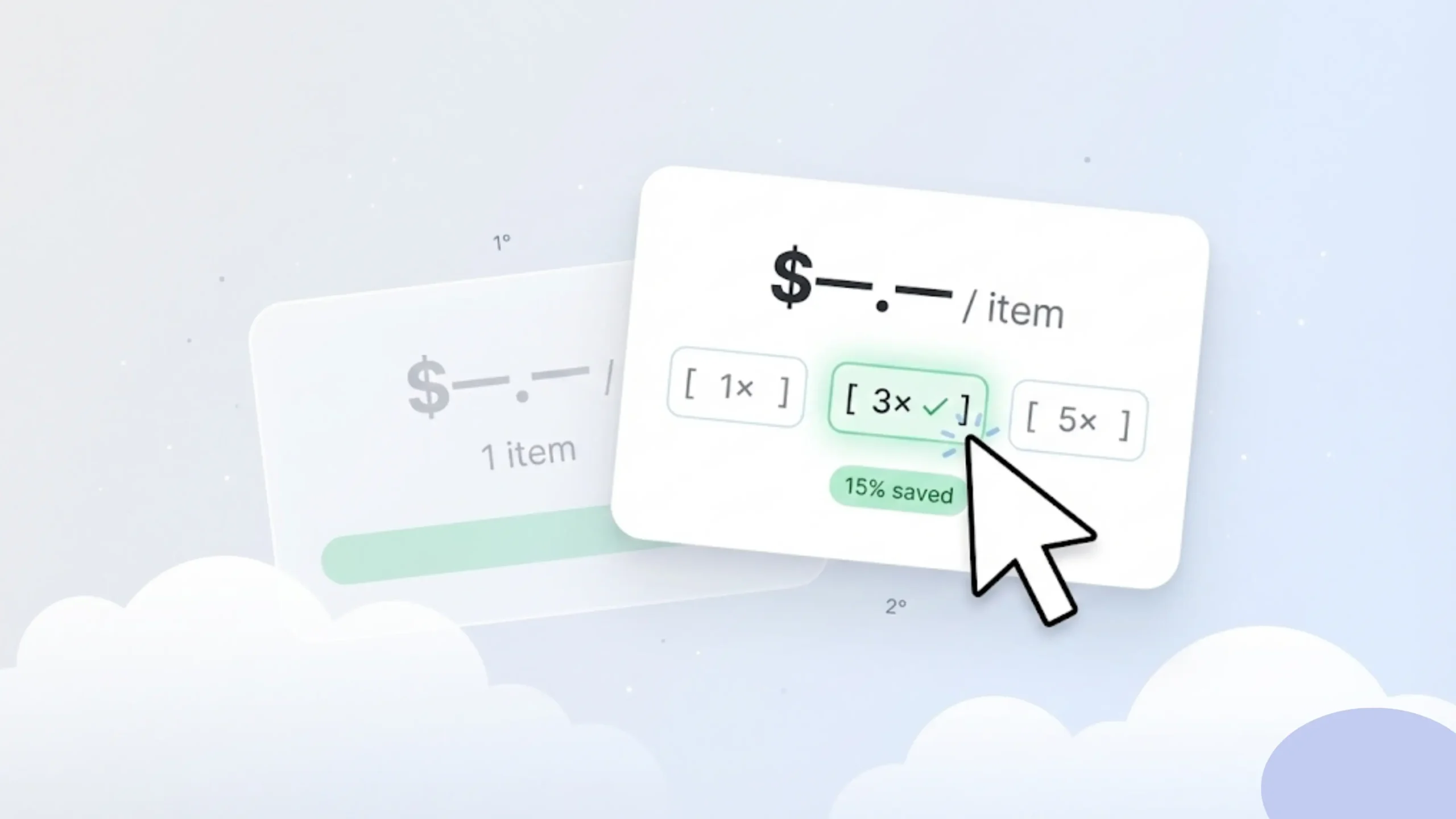
This guide shows you how to add volume discounts on Shopify using simple, no-code steps. You will publish working quantity breaks on product pages and test them in under 30 minutes.
If you plan to use an app, you can start with a volume discount app for Shopify that is free to install and made for new stores.
What are volume discounts on Shopify?
Volume discounts mean the price per unit goes down when a customer buys more.
They are also called shopify quantity breaks or tiered pricing.
Common example: Buy 2 save 10%. Buy 3 save 15%.
Two ways to add volume discounts on Shopify
Option 1 — Shopify built-in discounts
Shopify lets you create automatic discounts. These apply when conditions are met.
Limit: Shopify does not show quantity break tables on product pages.
Option 2 — Using a volume discount app
A volume discount app shows tiered pricing directly on product pages.
This gives clearer “buy more, save more” messaging for shoppers.
When should you use built-in discounts vs an app?
| Situation | Best option | Why |
|---|---|---|
| Simple sale with one rule | Shopify automatic discount | Quick to set up |
| Buy more, save more on product pages | Volume discount app | Shows tiers clearly |
Soft CTA: Start with one product and two quantity tiers.
Step-by-step: Add volume discounts using an app
Primary CTA: Install a volume discount app for Shopify
-
Step 1 — Install the app
Open the app listing and review pricing and limits before installing.
-
Step 2 — Create quantity breaks
Start with one product. Add only 2–3 tiers.
Example: Buy 2 save 10%. Buy 3 save 15%.
-
Step 3 — Show the offer on product pages
Place the offer near the price or Add to cart button.
Keep the text short and clear.
-
Step 4 — Test like a real customer
Add items to cart. Check the price. Test on mobile.
Step-by-step: Add volume discounts using Shopify automatic discounts
Go to Discounts in your Shopify admin. Create an automatic discount.
Set minimum quantity requirements. Save and test.
Note: Automatic discounts do not display quantity tables on product pages.
Common mistakes (and fixes)
Discount not applying
Check product eligibility and quantity rules.
Conflicts with other discounts
Shopify limits how discounts combine. Review active codes and automatic discounts.
Too many tiers
Use 2–3 tiers only. More tiers confuse buyers.
5-minute launch checklist
- Offer visible on product page
- Discount applies in cart
- Checkout total is correct
- Mobile view looks clean
- Tested in private browser
Why trust this guide
Written by a Shopify app marketer and merchant educator. The focus is simple setup for new stores.
This guide is based on Shopify documentation and real store setups.
It does not promise results. Performance depends on your products and traffic.
Next step
Pick one method. Launch one volume discount today.
Learn more examples in the Shopify discount guides.
FAQ
Can you add volume discounts on Shopify without apps?
Yes. You can use automatic discounts, but they do not show quantity breaks on product pages.
What are quantity breaks on Shopify?
Quantity breaks lower the price per unit when customers buy more items.
Do automatic discounts show on product pages?
No. Automatic discounts apply in cart and checkout only.
Why isn’t my volume discount working?
Check quantities, product eligibility, and other active discounts.
Can volume discounts stack with discount codes?
Usually no. Shopify controls how discounts combine.
How many tiers should I use?
Two or three tiers work best for most new stores.
Should volume discounts show on product pages or cart?
Product pages work best. Shoppers see the incentive before adding to cart.